A Practical Guide to Selecting RAM for Server Performance

Soraxus Assistant
January 16, 2026 • 23 min read
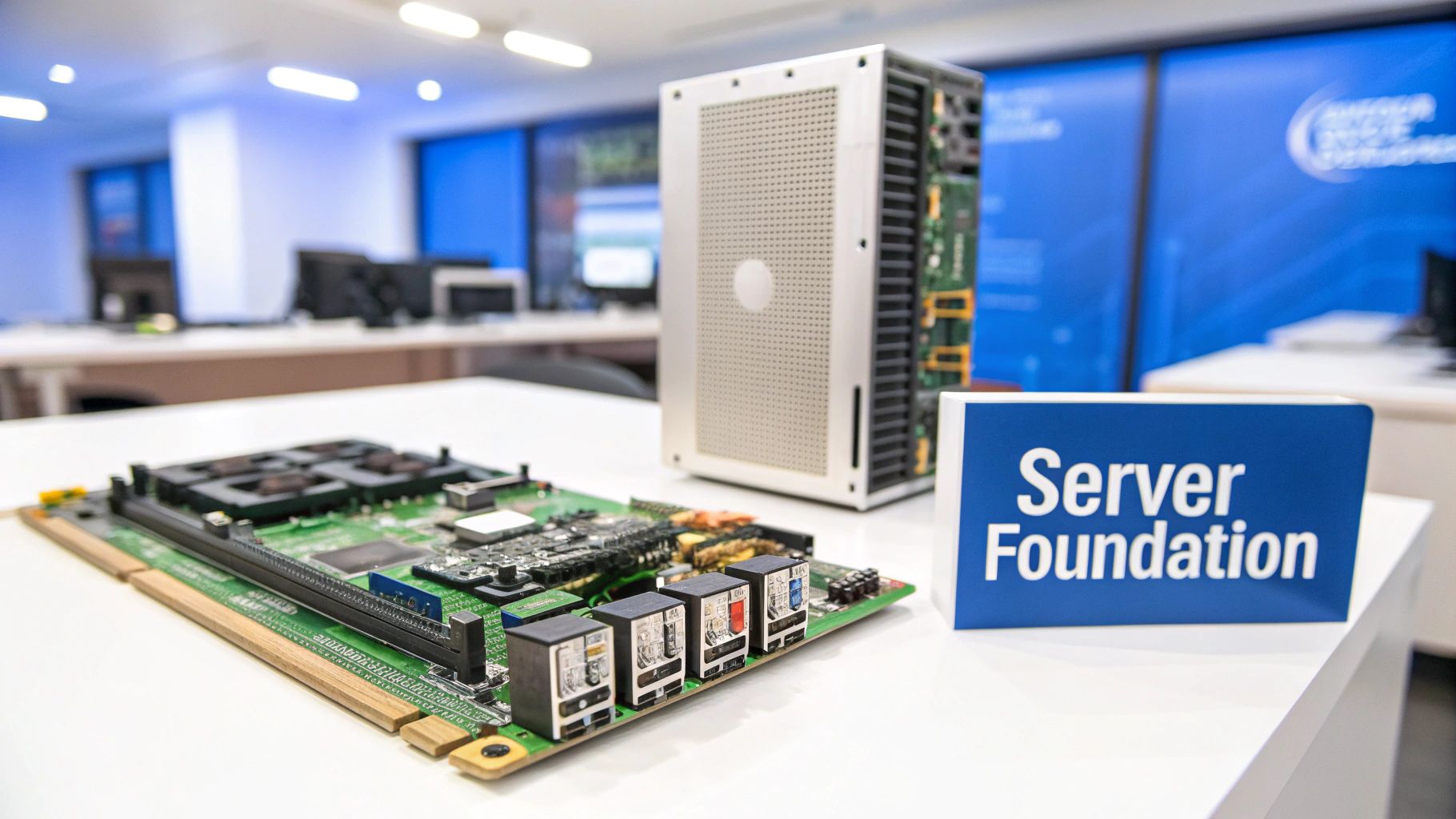
Picking the right RAM for your server is one of those foundational decisions that will define your system's stability, speed, and ability to grow. It’s a completely different ballgame than buying RAM for your desktop. Server memory is built from the ground up to handle the relentless grind of 24/7 operation, juggling thousands of requests without a single hiccup.
Get this choice right, and your applications run smoothly. Get it wrong, and you're staring down the barrel of slowdowns, crashes, and potentially disastrous data corruption.
Why the Right RAM Is Your Server's Bedrock
Think of server RAM as the CPU's high-speed workbench. If that workbench is too small, wobbly, or cluttered, even the world's fastest processor is going to be sitting around waiting. This analogy gets to the heart of server architecture: everything needs to be in balance. A mismatch between your CPU's muscle and your memory's capacity creates a bottleneck that kneecaps the entire system.
Here's a real-world example: a database server that's starved for RAM has to constantly pull data from much slower NVMe or SSD storage. Each one of those trips adds precious milliseconds of latency. Under a heavy load, those milliseconds stack up fast, leading to a painfully sluggish experience for your users. But with enough of the right RAM, the active dataset lives right there in memory, making access almost instantaneous.
The High Stakes of Server Memory
The consequences of memory failure are just worlds apart when you compare a server to a consumer PC. If a memory stick in a gaming rig has a hiccup, you might get a visual glitch or a crash to the desktop. Annoying, but not catastrophic.
In a server, that same tiny error could corrupt a critical financial transaction, bring down an entire e-commerce site, or take a vital business application offline. The stakes are simply too high for "good enough."
That's precisely why server-grade RAM is packed with features you won't find in standard modules. It’s all about absolute reliability. The key differentiators are:
- Error Correction Code (ECC): This is the big one. ECC technology automatically finds and fixes the most common type of memory errors on the fly, preventing the kind of data corruption and system crashes that are simply unacceptable in a business environment.
- Specialized Module Types: You'll run into terms like Registered DIMMs (RDIMMs) and Load-Reduced DIMMs (LRDIMMs). These are designed to allow for massive memory capacities and rock-solid stability by easing the electrical strain on the CPU's memory controller.
Understanding these core differences is the first step. The goal isn't just about cramming in more gigabytes; it's about deploying the right type of memory in the right configuration to truly unlock your server's potential.
This guide is here to cut through the jargon. We'll give you the practical, hands-on knowledge you need to match your RAM to your workload, whether you're running heavy databases, a massive virtualization cluster, or a high-traffic web server.
Decoding Server RAM: What the Acronyms Really Mean
When you start digging into server specs, you’ll be hit with a wall of acronyms. But when it comes to memory, a couple of key distinctions will define your server’s stability, performance, and future scalability. The first and most important one is Error-Correcting Code (ECC) RAM.
Think of your server’s memory as a giant, incredibly fast spreadsheet. A single flipped bit—a one accidentally becoming a zero—is a tiny typo in that spreadsheet. This can be caused by anything from cosmic rays to minor electrical fluctuations. On your desktop, you’d probably never notice.
But on a server processing financial data or running a critical database, that tiny typo can become a disaster. It could silently corrupt a file, crash an application, or lead to a catastrophic data integrity failure. ECC RAM is the built-in proofreader that finds and fixes these single-bit errors on the fly, before they ever have a chance to wreak havoc. It’s not a luxury; for any serious server, it's the foundation of reliability.
The Big Three: UDIMM, RDIMM, and LRDIMM
Beyond the ECC safety net, server memory modules (DIMMs) are designed differently, which directly impacts how much RAM you can install and how it talks to the CPU. Getting this right is crucial for building a system that can grow with your needs.
You’ll almost always encounter one of these three types: UDIMMs, RDIMMs, and LRDIMMs.
-
Unbuffered DIMMs (UDIMMs): This is the most direct approach. The CPU's memory controller talks straight to the memory chips. It’s fast and has very low latency, but that direct line creates a heavy electrical load, which severely limits how many memory sticks you can install in a server.
-
Registered DIMMs (RDIMMs): This is the undisputed workhorse of the server world. RDIMMs add a register chip right on the module. You can think of this chip as a signal booster or a traffic manager sitting between the CPU and the memory. By buffering commands and addresses, it lightens the electrical load on the memory controller. This simple change lets you pack far more RAM into a server, making RDIMMs the default choice for the vast majority of workloads.
-
Load-Reduced DIMMs (LRDIMMs): For when you need to go big. Really big. LRDIMMs take the concept a step further by adding a data buffer to the module. This chip manages the actual flow of data, reducing the electrical load even more than an RDIMM. This is the technology that enables the highest possible memory capacities. If you're building a monster virtualization host for dozens of VMs or a massive in-memory database, LRDIMMs make it happen.
The trade-off is pretty straightforward: RDIMMs and LRDIMMs add a tiny bit of latency because of their extra chips. But for almost every server application out there, the massive gain in capacity and stability is well worth that minuscule performance cost.
To make it easier to see how they stack up, here’s a quick comparison.
Comparing Server RAM Modules: UDIMM vs. RDIMM vs. LRDIMM
| Module Type | Key Feature | Maximum Capacity | Performance Profile | Ideal Use Case |
|---|---|---|---|---|
| UDIMM | Direct communication with CPU memory controller | Lowest | Lowest latency, but limited by electrical load | Small business servers, dedicated game servers, or single-application hosts. |
| RDIMM | On-module register chip to buffer signals | High | Excellent balance of capacity and performance | The standard for most virtualization, databases, and enterprise applications. |
| LRDIMM | On-module data buffer for lowest load | Highest | Enables maximum density with a minor latency trade-off | Massive in-memory databases, large-scale virtualization, and HPC workloads. |
Ultimately, the choice comes down to matching the module's capabilities to your workload's demands.
Choosing the Right Module for the Job
This isn't about simply picking the "best" module on paper. It's about matching the technology to what you’re actually trying to accomplish with your server.
For instance, a small office file server or a dedicated server running a single, lightweight app might be perfectly happy with ECC UDIMMs. They offer the lowest latency and cost when you only need a modest amount of memory.
But the moment you step into serious business applications like virtualization, database hosting, or high-performance computing, RDIMMs become the baseline. A typical dual-socket server for a growing business might use 16 RDIMMs to get to a comfortable 512GB of RAM—a setup that’s simply not possible with UDIMMs.
LRDIMMs are for when you need to push the absolute limits of capacity. Picture a bare-metal server being configured for a huge data analytics platform that requires 2TB of RAM. This is precisely where LRDIMMs come in, as they’re specifically engineered to make these enormous memory pools stable and reliable.
How CPU and Memory Channels Dictate Real-World Speed
It’s a common misconception that just filling a server's empty RAM slots will max out its performance. The truth is, how you install that RAM is just as important as how much you install. Real-world speed is tied directly to the CPU's architecture—specifically, its memory channels.
Think of these channels as dedicated, multi-lane highways for data moving between your RAM modules and the processor. A modern server CPU might have six, eight, or even twelve of these highways. To get the absolute best performance, you need to spread the data traffic evenly across all of them. This is done by installing memory in a balanced way, a technique called memory interleaving.
For instance, if you're working with a server CPU that has an eight-channel memory controller, you'll see a massive performance jump by installing RAM in multiples of eight—like 8, 16, or 24 sticks. This ensures every single channel is active and working together, creating the widest possible data pipeline to the CPU.
Understanding Balanced vs. Unbalanced Configurations
Failing to populate memory channels correctly is one of the most frequent—and easily avoidable—performance blunders in server builds. An unbalanced configuration is like closing off several lanes on your data highway, forcing all the traffic into a jam and creating a serious bottleneck.
- Balanced Configuration: Here, memory modules are installed symmetrically across all available channels. On an eight-channel CPU, this means installing eight identical DIMMs, one for each channel. This is the gold standard for peak memory bandwidth.
- Unbalanced Configuration: This happens when memory is installed unevenly. Putting just six DIMMs into that same eight-channel system would leave two channels completely unused. The server will still boot up and run, but its memory bandwidth will be crippled because the CPU can't leverage its full memory interface.
The different types of server RAM you'd use to populate these channels all have their place, but they build on a common foundation of reliability, as the diagram below shows.
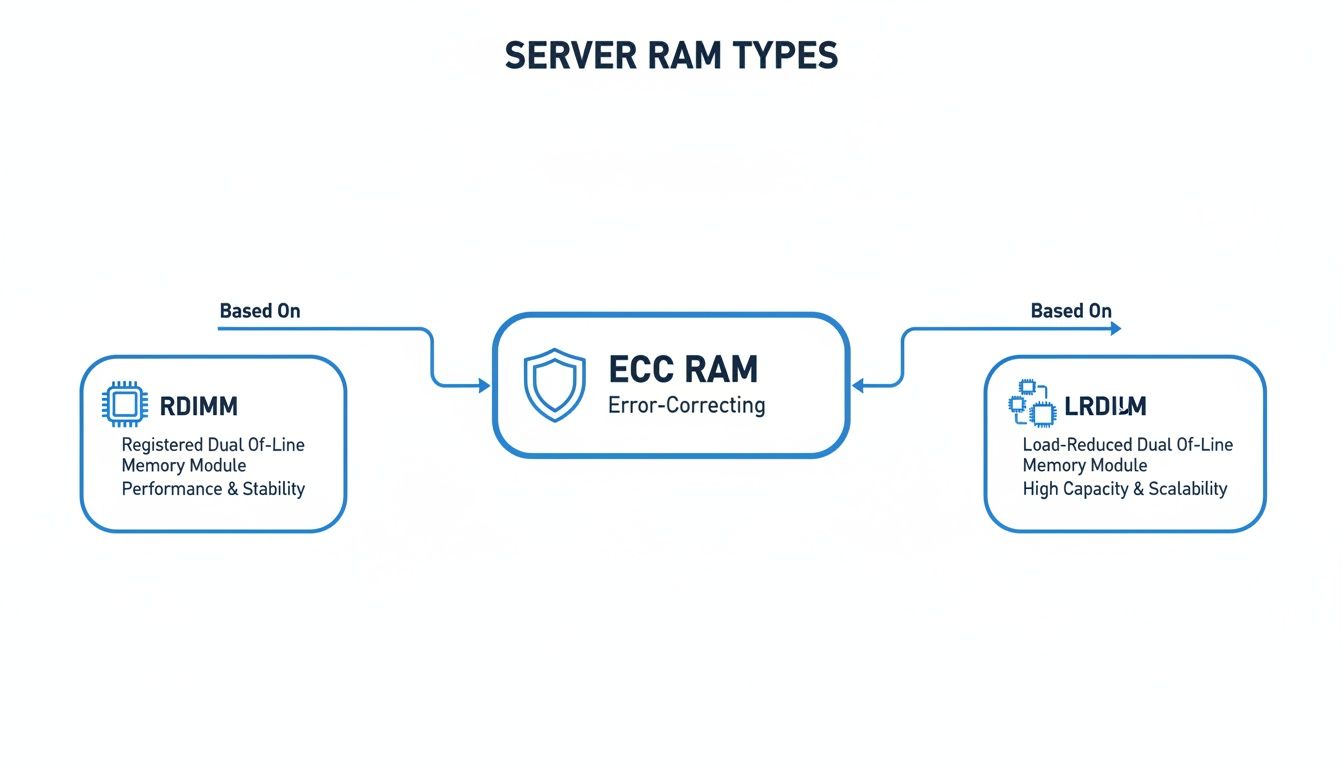
This just goes to show that while RDIMMs and LRDIMMs are built for different goals—performance versus capacity—they both rely on the error-correcting capabilities of ECC RAM.
The NUMA Factor in Multi-CPU Servers
Things get even more interesting in servers with more than one CPU. This is where a crucial concept called Non-Uniform Memory Access (NUMA) enters the picture. In a typical dual-socket server, each CPU has its own bank of directly attached memory slots. This is considered "local" memory for that specific CPU.
A processor can access its local memory at lightning speed. But it can also access the memory attached to the other CPU. The catch? It has to make an extra hop across the high-speed interconnect that links the two processors. Accessing this "remote" memory is noticeably slower and adds a frustrating dose of latency.
This is a game-changer for performance tuning. If an application or virtual machine running on one CPU is constantly having to fetch data from the memory bank of the second CPU, you've created a hidden but very real performance penalty.
A Practical Example of a NUMA Bottleneck
Picture a virtualization host with two CPUs. CPU 1 is running a critical database inside a virtual machine (VM). But, because of a poor configuration, the hypervisor has allocated that VM's memory on the DIMMs physically attached to CPU 2.
Now, every time that database needs to retrieve data, the request has to travel from CPU 1, across the server's internal bus to CPU 2 to get the data, and then all the way back. This round trip adds latency to every single operation, bogging down the entire application.
A NUMA-aware setup, on the other hand, would ensure the VM's memory is allocated locally to CPU 1, keeping that data path as short and fast as possible.
Making sure your operating system and hypervisor are NUMA-aware is non-negotiable for serious performance. Schedulers in systems like Linux or VMware ESXi are smart enough to try and keep a process and its memory on the same NUMA node (a CPU and its local RAM). Aligning your physical RAM layout with this logic is how you avoid these subtle but damaging bottlenecks and unlock consistent, high-level performance.
Planning Your RAM Capacity for Key Server Workloads
Guessing how much RAM you need for a server is a surefire way to cause problems down the road. If you under-provision, you’ll hit crippling slowdowns as the system constantly shuffles data to and from slow disk storage. Over-provision, and you're just burning cash on capacity that sits idle.
The right amount of memory isn't a fixed number; it's a calculated decision based entirely on the job your server is designed to do. Let's break down how to move past the guesswork and size your memory for a few common server roles. Each workload has a totally unique memory footprint, and understanding its behavior is the key to building a server that's both powerful and cost-effective.
Database Servers: The Cache is King
For any database server—whether you're running PostgreSQL, MS SQL, or MySQL—RAM is the single most important performance component. Its main job is to cache the data, indexes, and query plans that are used most often. When data lives in memory, queries are lightning-fast. The moment the server has to fetch that same data from a spinning disk or even an SSD, performance grinds to a halt.
Think of it this way: your database has an "active dataset," which is the chunk of data being constantly read and written. Your goal is to fit as much of this active set into RAM as you possibly can.
A solid rule of thumb is to allocate enough RAM to cover your entire active dataset, plus an extra 20-25% for the operating system and the database software itself.
Practical Example: A PostgreSQL Server
- You have a 400 GB PostgreSQL database.
- After digging into the usage patterns, you find that about 25% of it (100 GB) is the "hot" data that users and applications hit all day long.
- To hold this active set in memory, you’d start with 100 GB of RAM.
- Add a 25% overhead (25 GB) for the OS and database processes, and your target comes to 125 GB. Aiming for a 128 GB configuration would be a fantastic starting point.
Virtualization Hosts: Juggling Multiple Tenants
When you’re running a virtualization host with a hypervisor like VMware ESXi or KVM, you aren't planning for one workload—you're planning for dozens. The real challenge is balancing the memory needs of every single virtual machine (VM) without overcommitting your physical resources. If you do, you'll see severe performance hits for every tenant on that host.
The calculation here is pretty straightforward: just add it all up. Sum the RAM you need for each VM, and then tack on a buffer for the hypervisor itself. Hypervisors are generally lightweight, but they still need their own slice of memory—typically between 4 GB and 8 GB on a modern server.
Never forget the hypervisor's overhead. Allocating 100% of your physical RAM to your VMs leaves no room for the software that's actually managing them. This is a classic mistake that leads to instability and swapping at the host level.
Practical Example: A VMware Host
- Calculate Total VM RAM: You plan to run ten web server VMs, each needing 8 GB of RAM (80 GB total), plus two small database VMs, each needing 16 GB (32 GB total). Your total VM requirement is 112 GB.
- Add Hypervisor Overhead: Set aside 8 GB for the VMware ESXi hypervisor.
- Include a Growth Buffer: It’s always smart to add a 15-20% buffer for future growth or unexpected spikes. A 20% buffer on 120 GB (112 GB + 8 GB) is 24 GB.
- Final Calculation: 112 GB (VMs) + 8 GB (Hypervisor) + 24 GB (Buffer) = 144 GB. To comfortably meet this need with standard module sizes, you'd want a server with 192 GB of RAM.
If you're debating whether to cram all these workloads onto one big machine or use several smaller ones, understanding the differences between a dedicated server vs VPS can add some valuable context to your virtualization strategy.
Caching and Application Servers
For other common server types, the memory requirements follow different patterns.
-
In-Memory Caches (Redis, Memcached): With these systems, performance is directly tied to RAM. The more memory you have, the more data you can cache, and the faster your applications will run. Planning here is simple: figure out the total size of the dataset you want to keep in the cache and provision slightly more RAM than that.
-
Application & Game Servers: These servers need enough RAM to handle a flood of concurrent user sessions, application logic, and game state data without ever touching the disk. Not enough memory here means lag and an unresponsive experience for your users. A great starting point is to monitor your application's memory usage under peak load in a testing environment, then add a 30-50% buffer for production. For a game server hosting 100 concurrent players, if each player session uses 50 MB of RAM, you'd need at least 5 GB just for the players, plus more for the game engine and OS. A 16 GB or 32 GB configuration would give you a much safer margin.
Making Smart Choices in the Server RAM Market
Buying server RAM isn't like picking up a stick of memory for your gaming PC. It's a strategic decision. The market is constantly shifting, especially with the huge appetite for memory from AI and cloud providers. Simply chasing the lowest price tag is a classic mistake; what really matters are the technical trade-offs that dictate performance and your long-term budget.
This means you have to look past the gigabytes. We need to talk about memory speed, why vendor qualification is so important, and the total cost of ownership. Getting this right from the start saves you from future headaches and ensures your infrastructure is powerful and efficient for years to come.
Decoding Memory Speed and Its Real-World Impact
One of the first specs you'll see is memory speed, usually shown in Megatransfers per second (MT/s). You might be looking at two DDR5 options: one at 4800 MT/s and a pricier one at 5600 MT/s. The faster module has more theoretical bandwidth, sure, but the million-dollar question is: will your workload actually use it?
For a lot of common server tasks, like basic web hosting or file serving, the real-world benefit of paying a premium for the fastest RAM is often negligible. These applications are usually waiting on the network or storage, not the memory.
However, some jobs absolutely thrive on faster RAM:
- High-Performance Computing (HPC): If you're running scientific simulations or complex models that constantly shuffle huge datasets, memory bandwidth is a critical bottleneck.
- In-Memory Databases: Systems that keep the entire database in RAM for lightning-fast queries depend on the quickest memory access they can get.
- Large-Scale Virtualization: A host juggling dozens of busy virtual machines puts a heavy strain on the memory controller. Faster RAM can lead to a more responsive system for everyone.
Key Takeaway: Before you splurge on the fastest RAM on the market, take a hard look at your workload. If it's not memory-bound, you’ll get a much better return on investment by putting that money toward more capacity or faster storage.
The Critical Role of Vendor Qualification
I've seen people make this mistake countless times: buying RAM based on specs alone, without checking if it's actually certified for their server. Server manufacturers publish a Qualified Vendor List (QVL) for every single one of their platforms. This list tells you the exact memory modules they have torture-tested to guarantee they work perfectly.
Using non-qualified RAM is a roll of the dice. It might work flawlessly. Or, it could introduce bizarre, intermittent stability problems, prevent the server from booting, or force the memory to run at a slower speed. For any production system, especially a mission-critical Linux dedicated server, sticking to the QVL isn't just a suggestion—it's essential.
Total Cost of Ownership and Market Trends
The price tag on the invoice is just the beginning. The total cost of ownership (TCO) also includes what it costs to run the memory. Modules with higher density and speed can sometimes draw more power and produce more heat, and in a data center, that translates directly to higher electricity and cooling bills.
You also have to watch the market, which can be incredibly volatile. The AI boom is putting a massive strain on the DRAM supply chain. In fact, because of this demand, some projections show server RAM prices could double year-over-year by late 2026. This trend has already pushed costs up 50% year-to-date in 2025, and more increases are likely. To keep up with these market shifts, you can read the full analysis on how AI demand is affecting memory prices.
Best Practices for RAM Installation and Health Monitoring
Choosing the right RAM for server workloads is a huge part of the equation, but it's not the end of the story. How you install and validate that memory is what truly locks in your system's long-term stability. Trust me, a little care at this stage can save you from a world of hurt later—think mysterious crashes and performance slowdowns that are a nightmare to diagnose.
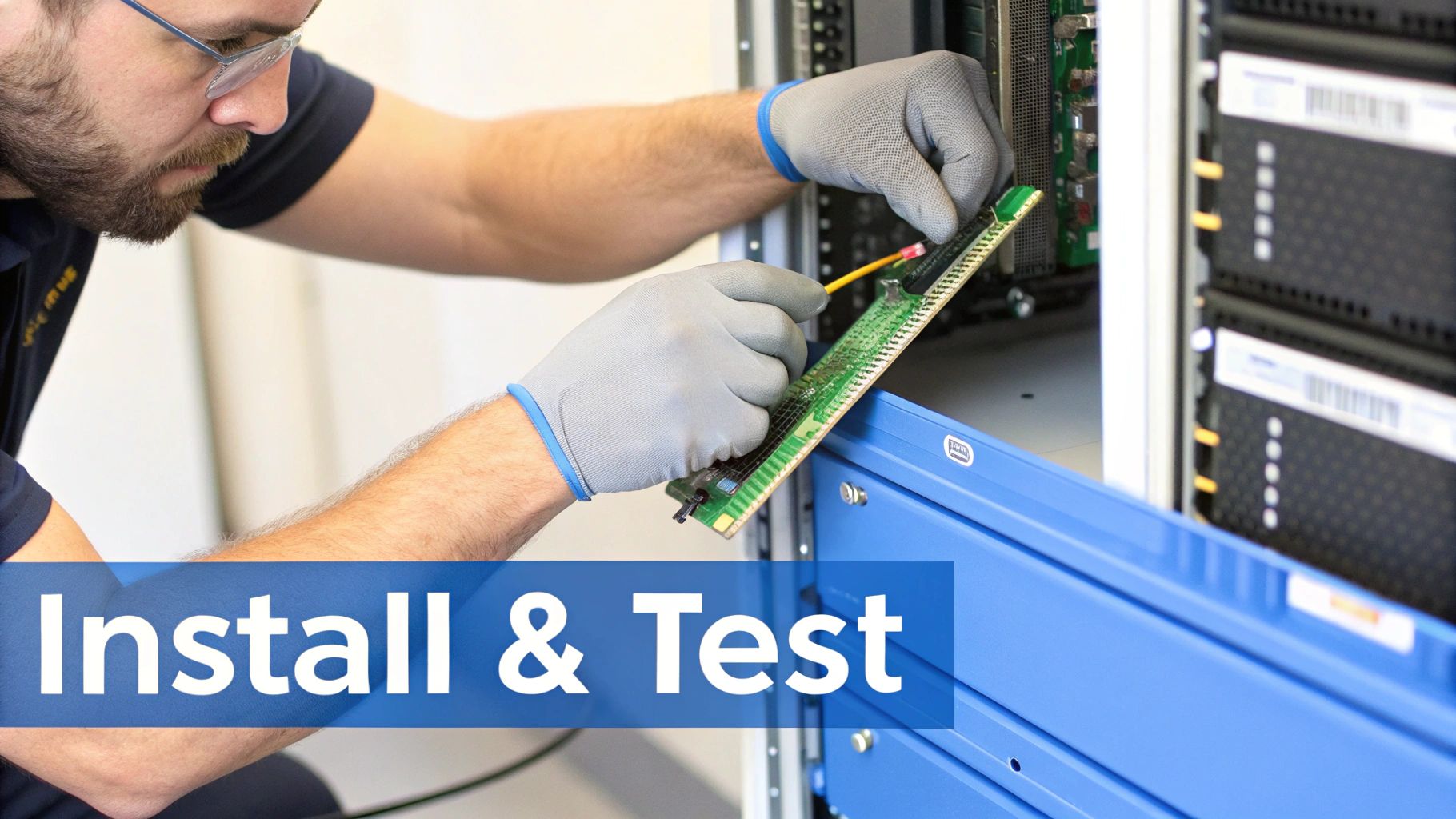
It all starts with the physical installation. Before you even touch a DIMM, get yourself an anti-static wrist strap and work on a proper mat. These modules are incredibly sensitive to static electricity. Most importantly, grab the motherboard manual. That document is your bible for populating the DIMM slots correctly to get that balanced, high-performance configuration you paid for.
Initial Verification and Stress Testing
With the modules clicked into place, it's time to see if the server agrees with your work. Don't even think about booting the OS yet. First, jump into the server's management interface—whether it's an IPMI or similar remote management controller. This is where you'll get confirmation that every single stick of RAM is detected and running at the correct speed and timings.
Once the hardware checks out, the real test begins. A single bad RAM module can slowly poison your data for weeks before you notice, so rigorous testing is absolutely mandatory. For this, you need a serious tool like MemTest86+.
We consider an overnight or 24-hour memory test a non-negotiable part of any server build. This long burn-in period lets the modules get up to operating temperature, which often exposes those tricky, intermittent faults that a quick one-hour test would completely miss.
This step is your best defense against shipping a server with a ticking time bomb inside. It catches manufacturing defects or subtle compatibility problems before your server ever touches production data, preventing some very expensive downtime.
Ongoing Health Monitoring and Proactive Management
Just because the server is up and running doesn't mean your job is done. Keeping a close eye on memory health is what separates a well-managed system from a future disaster. The good news is that modern operating systems give you plenty of tools to stay ahead of problems.
On Linux servers, a few simple commands can tell you a lot:
dmesg: This should be your first port of call for checking ECC errors. A quick search for "ECC" or "corrected error" will tell you if a module is starting to degrade, even if the errors are still being fixed automatically.vmstat: This tool is great for watching memory usage and swap activity. If you see consistently high numbers in the swap-in/swap-out (si/so) columns, it’s a dead giveaway that your server is running low on physical RAM and needs an upgrade.free -h: For a quick, easy-to-read snapshot of your memory situation, this command gives you the total, used, and free memory at a glance. It's a simple way to gauge the system's current memory pressure.
By making these checks a regular part of your routine, you can shift from putting out fires to preventing them in the first place. For a more comprehensive look at building a robust health-checking system, check out these infrastructure monitoring best practices.
Your Server RAM Questions, Answered
Let's cut through the noise. When it comes to server RAM, there are a few common questions that pop up time and time again. Here are some straightforward answers based on real-world experience.
Can You Mix Different RAM Speeds in a Server?
Technically, you can, but it’s a terrible idea. If you install RAM modules with different speeds, the server’s memory controller will slow everything down to match the slowest stick you’ve installed.
So, if you mix a bunch of 5600 MT/s modules with a single 4800 MT/s module, all of your expensive, fast RAM will run at the slower 4800 MT/s speed. You not only waste money and performance but also risk creating weird stability problems. For predictable performance and rock-solid reliability, always use identical RAM modules.
What Happens if You Use Non-ECC RAM in a Server?
Most serious server platforms won't even boot. The system's firmware check will detect the non-ECC memory and halt the startup process because it's expecting RAM with error-correcting capabilities.
On the off chance you have a low-end board that allows it, you're willingly giving up the most critical feature for protecting your data. Running a production workload without ECC is just asking for trouble, from silent data corruption to random, unexplained system crashes.
Using non-ECC memory in a server is like running a critical database without backups. It might work for a while, but the potential for catastrophic failure is unacceptably high. Stick with ECC modules that are qualified for your specific server model.
Is More RAM Always Better Than Faster RAM?
For almost every server workload out there, the answer is a resounding yes. Capacity trumps raw speed. Think about what servers do—they run databases, virtual machines, and large caches. These applications thrive on having enough memory to keep data readily available, avoiding the massive performance hit of reading from a disk.
A server with 256 GB of 4800 MT/s RAM will run circles around one with 128 GB of 5600 MT/s RAM if the active data set exceeds 128 GB. Always prioritize getting enough RAM first. Once your capacity needs are met, then you can think about splurging on faster speeds if the budget and workload justify it. This focus on capacity is a major reason the global server memory market hit USD 30.35 billion and continues to expand. You can dive deeper into these global server memory market trends on intelmarketresearch.com.
Ready to configure a server with the right memory for your workload? The experts at Soraxus can help you deploy enterprise-grade bare metal servers with the latest Intel and AMD platforms, ensuring your setup is optimized for performance and stability from day one. Configure your ideal server today.